

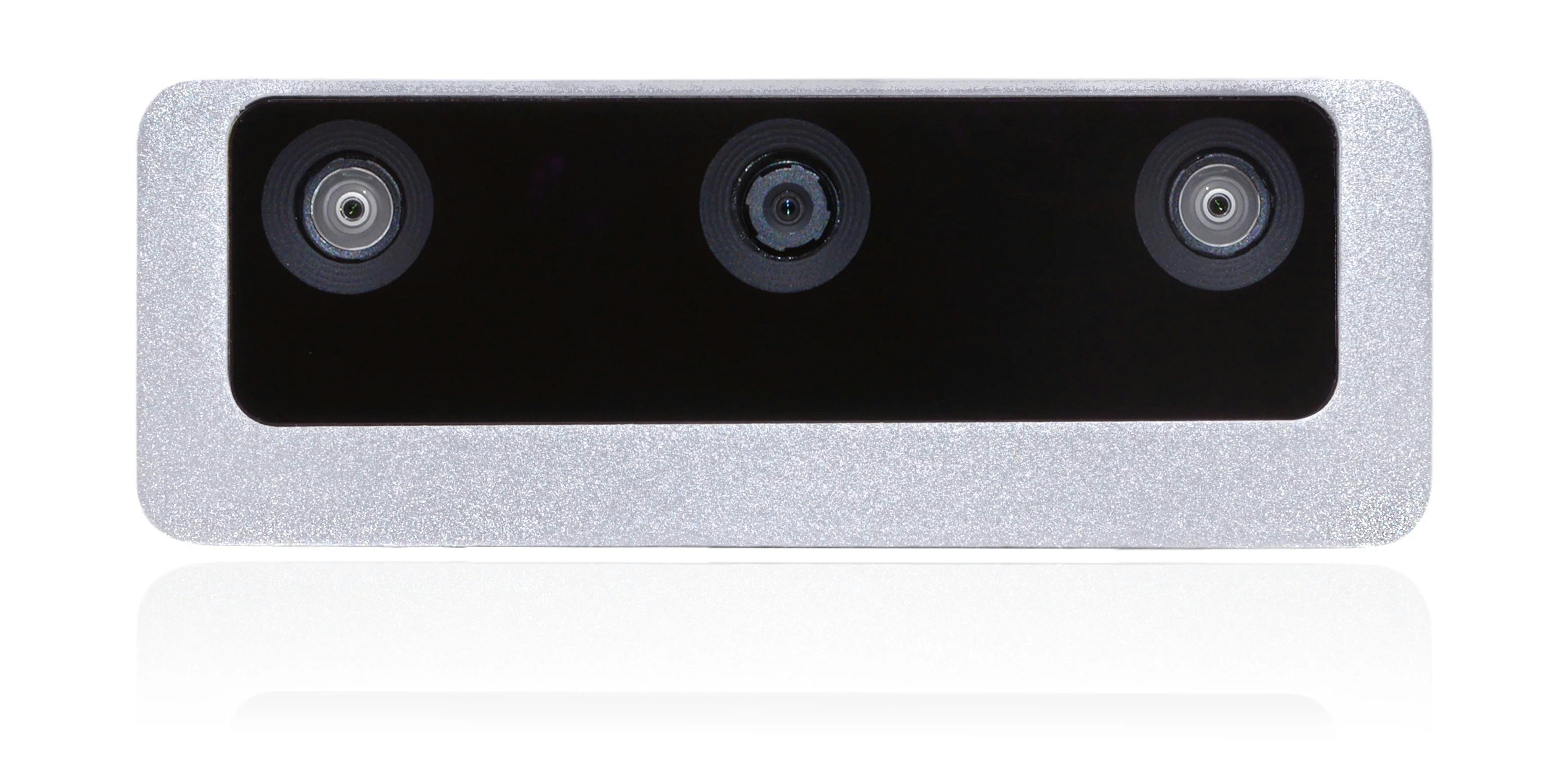
Configuring the Luxonis OAK-D 1 PoE Camera
Before you can start using the Luxonis OAK-1 W PoE camera with Moverse software for motion capture and 3D animation, you’ll need to configure the camera properly. This section provides a step-by-step guide to getting your camera up and running.Hardware Installation
- Connect the Camera: Connect your OAK-1 W PoE camera to your network using a Cat5e or higher Ethernet cable. Ensure that your network switch or router supports Power over Ethernet (PoE).
- Verify Connection: Check the LEDs on the camera for network activity. These should light up if the connection is successful.
Troubleshooting
Encountering issues while setting up or using your Luxonis OAK-1 W PoE camera? Here are some common problems and their potential solutions:Issue: Camera Not Powering On
- Check PoE Support: Ensure that your Ethernet switch or router supports Power over Ethernet (PoE). Not all network equipment has PoE capabilities.
- Inspect the Ethernet Cable: Verify that the Ethernet cable is properly connected and is not damaged. Use a Cat5e or higher cable for optimal performance.
Issue: Camera Not Detected by the System
- Network Configuration: Check your network settings. Ensure that your computer and camera are on the same subnet if you’re using a local network setup.
- Reboot the Camera: Disconnect the camera, wait for a few seconds, then reconnect it. Sometimes a simple power cycle can resolve detection issues.
Issue: Video Feed Not Displaying
- Check Connection Status: Use network tools or your router’s interface to check if the camera is correctly recognized on the network.
- Restart the Application: Close and reopen your motion capture or animation application to reinitialize the connection to the camera.
Issue: Poor Video Quality
- Adjust Camera Settings: If the video quality is poor, adjust the camera settings such as exposure, focus, or ISO through your application’s camera settings menu.
- Check Lighting Conditions: Ensure that the camera is operating under adequate lighting conditions, as poor lighting can significantly affect the quality of the video feed.
Issue: Frequent Disconnections
- Network Stability: Check the stability of your network connection. Frequent disconnections may occur due to network congestion or unstable network equipment.
- Upgrade Firmware: Make sure that your camera’s firmware is up to date. Firmware updates can resolve bugs and improve stability.