> ## Documentation Index
> Fetch the complete documentation index at: https://docs.moverse.ai/llms.txt
> Use this file to discover all available pages before exploring further.
# Management
**Captures** is a central feature of the Moverse Portal, where users can access, manage, and download captured performances. This section provides essential tools for organizing your assets and preparing them for use in various applications.
Follow the steps below to effectively navigate and manage the Captures library:
### Step 1: Manage Captures
* **Browse Captures**: Upon accessing the Captures page, you'll see a list of all your available animations. Use the search bar to quickly locate specific files.
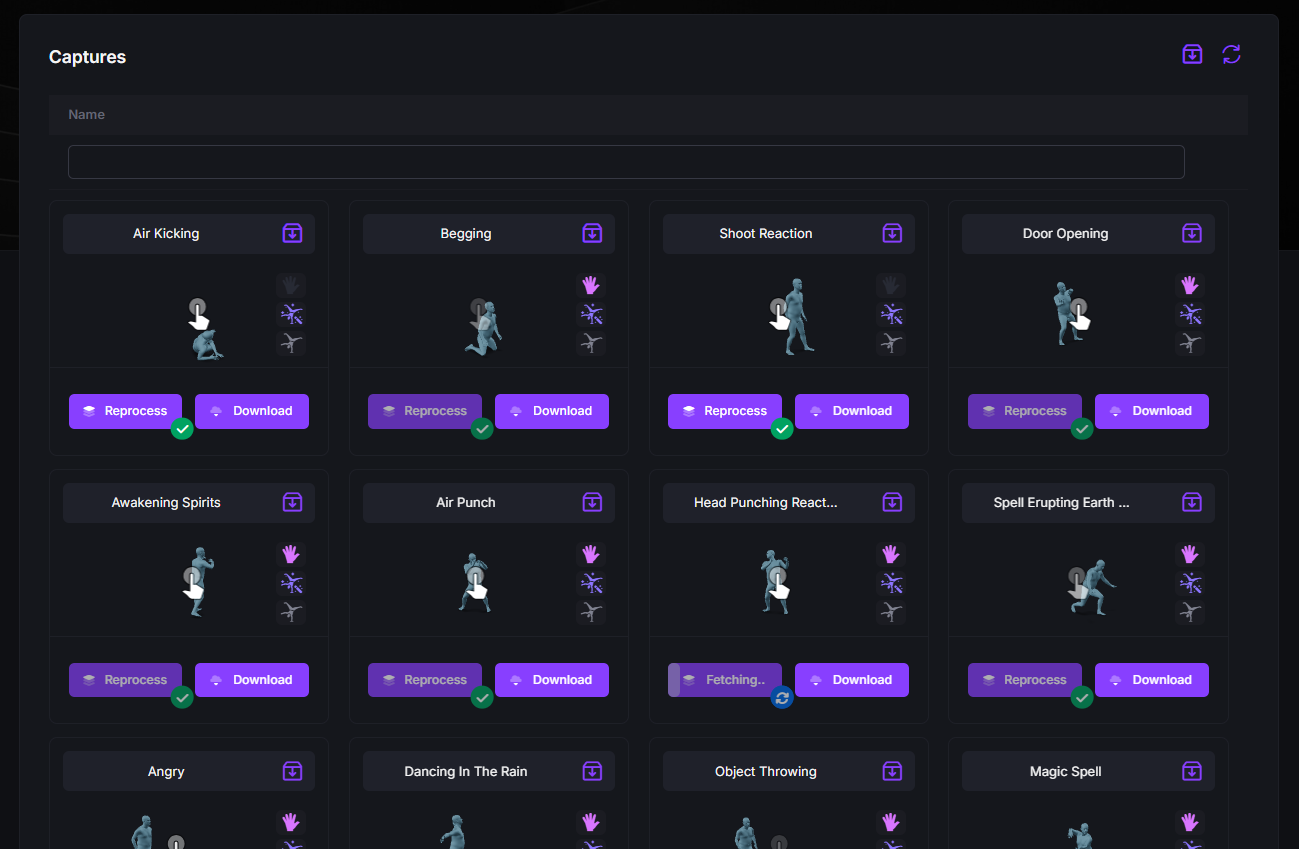 * **Download Animations**: Select one or more captures and export them in various formats such as FBX, GLB, or TRC. This allows for integration into different platforms or pipelines. For more, see [Download Wizard](../../sections/portal/download).
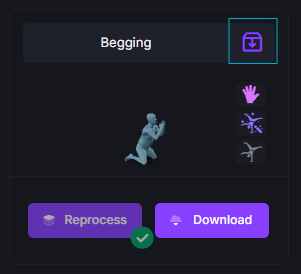
* **Archive / Unarchive**: Use the "Archive / Unarchive" button in the top-right corner of each animation tile to organize your workspace by hiding or restoring specific captures.
* **Download Animations**: Select one or more captures and export them in various formats such as FBX, GLB, or TRC. This allows for integration into different platforms or pipelines. For more, see [Download Wizard](../../sections/portal/download).
* **Archive / Unarchive**: Use the "Archive / Unarchive" button in the top-right corner of each animation tile to organize your workspace by hiding or restoring specific captures.
 ### Step 2: Online Viewer
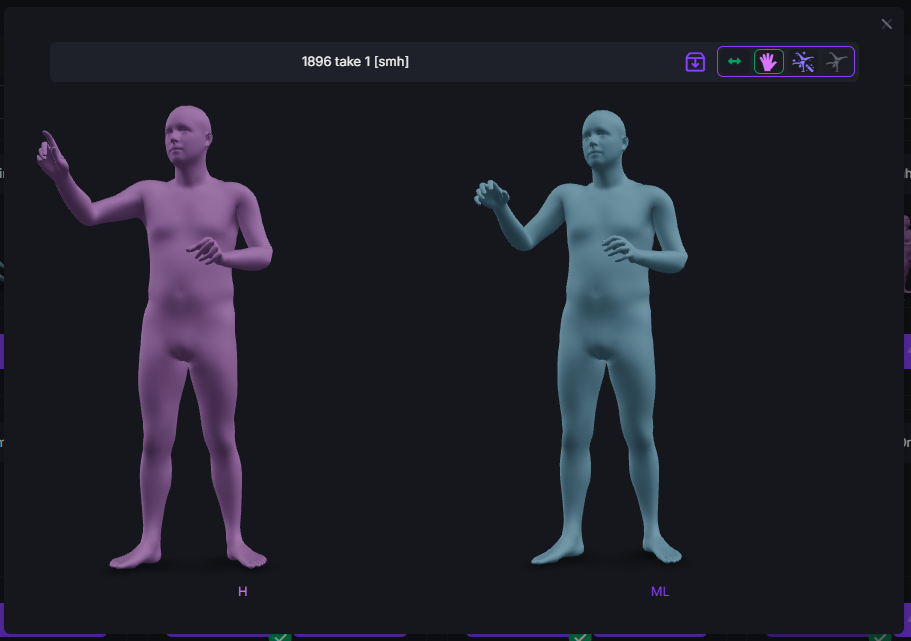
* **Preview Captures**: Click on a capture to open it in the online 3D viewer for a more detailed visualization. This helps in assessing animation quality before download or further processing.
* **Compare Types**: Use the button to perform side-by-side comparisons of different animation versions (e.g., Raw vs. Reprocessed).
### Step 2: Online Viewer
* **Preview Captures**: Click on a capture to open it in the online 3D viewer for a more detailed visualization. This helps in assessing animation quality before download or further processing.
* **Compare Types**: Use the button to perform side-by-side comparisons of different animation versions (e.g., Raw vs. Reprocessed).
 ### Conclusion
The Captures section in the Moverse Portal offers a powerful environment for managing your animation assets. With tools for organizing, previewing, exporting, and archiving, it supports a streamlined and productive motion capture workflow.
### Conclusion
The Captures section in the Moverse Portal offers a powerful environment for managing your animation assets. With tools for organizing, previewing, exporting, and archiving, it supports a streamlined and productive motion capture workflow.